This guide shows you how to use voice requests with your Merlyn remote to save time in the classroom.
How to Use Voice Requests:
Press and hold the microphone button on your remote. Merlyn will listen for your prompt.
Speak your request clearly.
Release the microphone button when finished.
How to
Timers Set a single timer using the display's built-in timer app.
Time Ask for the current time in your location or a specific location.
Will give local time, based on panel time zone.
Weather Get the forecast for a specific area and time (city, day, weekend, or date). Merlyn will answer by conducting a Google search on the panel’s browser. We rely on the native browser access to determine the device location.
Will show current local weather results
Open/close panel applications Launch or close these panel applications:.
Annotation
Whiteboard
Browser
Newline Engage
Newline casting
Newline broadcast
Classroom tools
App store
Newline visualizer
File viewer
Google Sheets
Google Drive
Native browser Open and search popular educational websites:
merlyn.org
docs.google.com
youtube.com
google.com
drive.google.com
classroom.google.com
brainpop.com
newsela.com
gonoodle.com
kahoot.com
khanacademy.org
earth.google.com
canva.com
en.wikipedia.com
nearpod.com
app.peardeck.com
pandora.com
cnn.com
bing.com
vimeo.com
office.com
Whiteboard Open the whiteboard, change pen colour, create new pages, and close the whiteboard using voice requests. Use the AirMouse to control the pen.
Screenshot Capture an image of the current screen and save it just like using the Newline button.
Freeze screen Keep your display frozen while navigating your computer connected via HDMI or casting. This is useful for hiding content from students. You can freeze and unfreeze the screen with voice requests or the remote button.
Switch display Switch between connected devices by saying their source name. The Newline panel has these source options: Home, HDMI 1, HDMI 2, HDMI 3, and USB-C.
Brightness Adjust the display brightness by voice. You can set it to maximum, minimum, or a specific percentage (0-100%).
Volume Adjust the panel volume using voice requests or the remote. You can mute, unmute, or set a specific level (1-10 or a percentage between 0-100%).
Printed Request List
Use the attached document to print this guide for future reference.


 Using Your Voice with the Merlyn Remote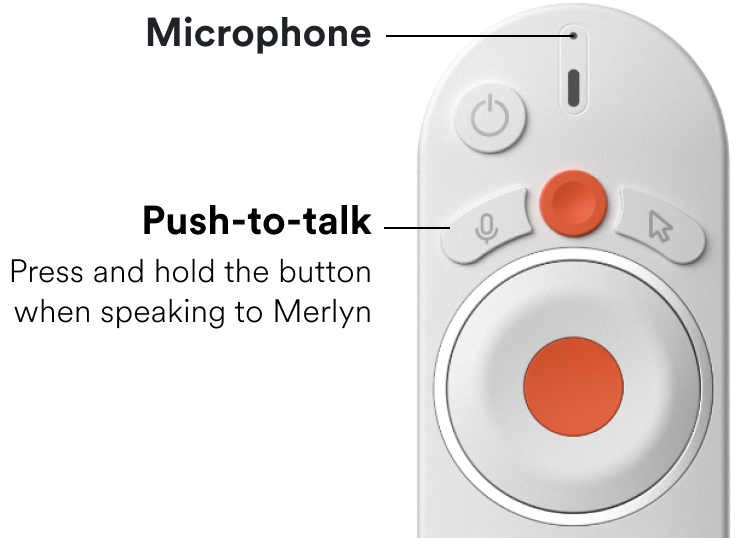
 How to Use Voice Requests:
 How to
 Printed Request List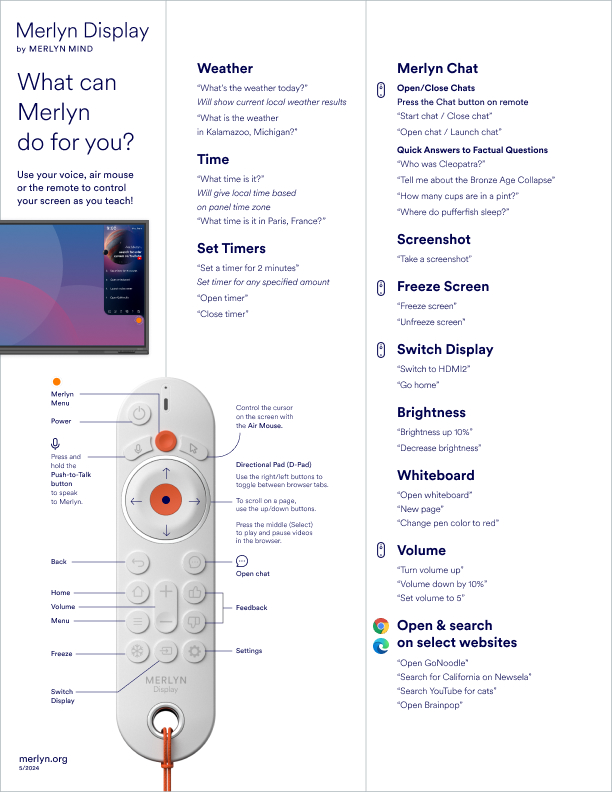
Comments
0 comments
Article is closed for comments.